Chrome
PC #
Download multiple files
-
Click on the main menu button, represented by three vertically aligned dots and located in the upper right corner of the
browser window. When the drop-down menu appears, select the
Settings option. You can also access Chrome's settings interface by entering
chrome://settings
in the Chrome address bar.
- Scroll to the bottom of the Settings screen and click Advanced to reveal the Privacy and security settings.
- Click the arrow next to the Content settings entry.
- Scroll down in the Content settings screen until you locate the Automatic downloads section and click the arrow next to the entry.
- You have two options. Use the slider next to Do not allow any site to download multiple files automatically to turn on this restriction. This setting causes Chrome to block all automatic subsequent file downloads following the first one, which you initiate. If you move the slider to the off position, you see Ask when a site tries to download files automatically after the first file, which is the recommended setting. This option will prompt you each time a website attempts to download multiple files automatically following the first one.
You can also block or whitelist specific websites for this functionality in the Automatic downloads screen.
Source: lifewire.com
Set download location and Disabled Ask where to save each file before downloading
- Access Chrome's settings interface.
- Scroll down and choose the Advanced option.
- Scroll to the Downloads section, click CHANGE to set the download location and click the button to the left of Ask where to save each file before downloading.
Mobile #
TODO
Q&A #
1. What is the 'image proxy'? #
In order to rename the download file from something like oqvmkbsqkqjjixhwvvqwctdyxleszpywqswvmyfq-3000.jpg to 6540032 - Sakura's Valentine's Day - Akaiws Sakura Haruno-1574657036346.
We need to bypass the Cross-Origin Resource
Sharing (CORS) by using the 'image proxy' before we can download it.
You can choose the image proxy from the list or select None to not using any proxy.
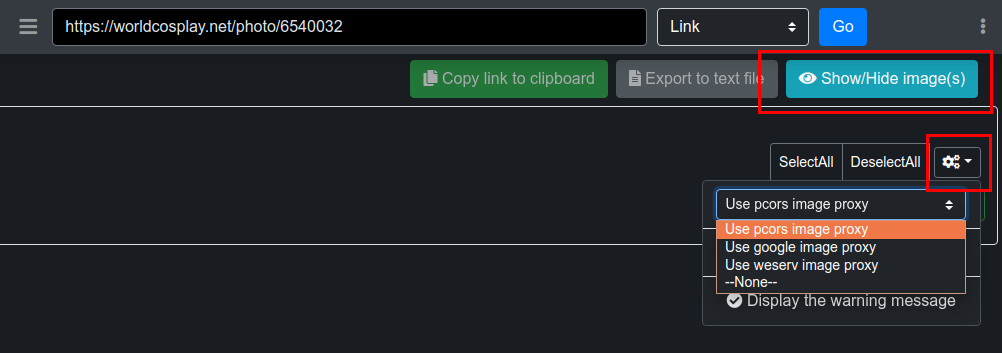
If you select None, you will need to use an extension to bypass the CORS (e.g. Allow CORS: Access-Control-Allow-Origin).
2. What is the 'glitch/zeit API'? #
The simple API server which helps to get the photo URL from you input.
3. Im too lazy to open this tool. #
You can try our extension: Cosplay Photo Downloader .
4. #